

1/8
Description
About this item
• Osmo Pocket 4 Details
• 1-Inch CMOS, 4K/240fps Slow Motion
• Steady Footage with 3-Axis Stabilization
• ActiveTrack with Up to 4× Zoom Tracking
• Fast, Accurate Autofocus
• 14-Stop Dynamic Range [9] & 10-Bit D-Log
• 107GB Built-In Storage, Up to 240 Min Recording
• Gimbal Clamp, Handle & Pouch Included
• Charger Sold Separately
What's in the box
• Osmo Pocket 4 × 1
• USB-C to USB-C PD Cable (USB 3.1) × 1
• Osmo Pocket 4 Gimbal Clamp × 1
• DJI Wrist Strap × 1
• Osmo Pocket 4 Handle With 1/4" Thread × 1
• Osmo Pocket 4 Portable Carrying Pouch × 1
How to Verify Your DJI Serial Number
Every DJI product has a unique serial number (SN). You can check it on DJI's official website in just two steps to confirm your product is genuine.
1
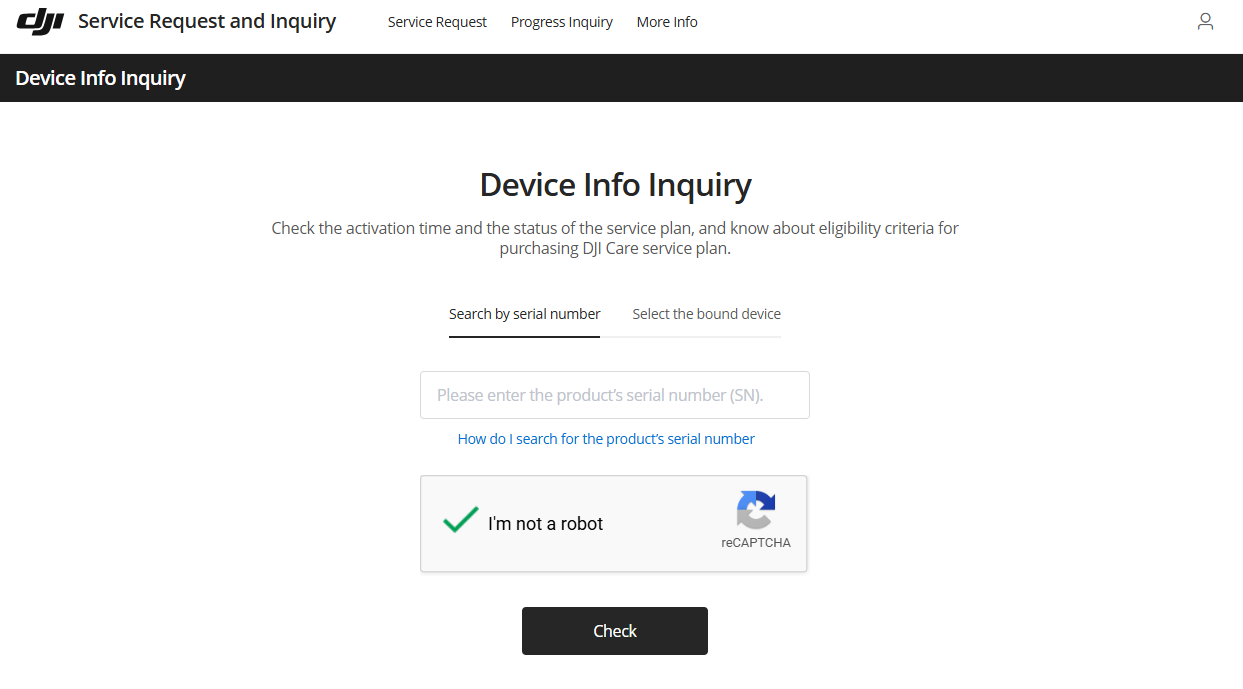
Open DJI's official inquiry page and enter the SN
Visit DJI's official Device Info Inquiry page. Enter the serial number found on the product body or on the packaging box (see "Where to find your SN" below), tick "I'm not a robot", then click Check.
Go to DJI Official Page
DJI official Device Info Inquiry page
2
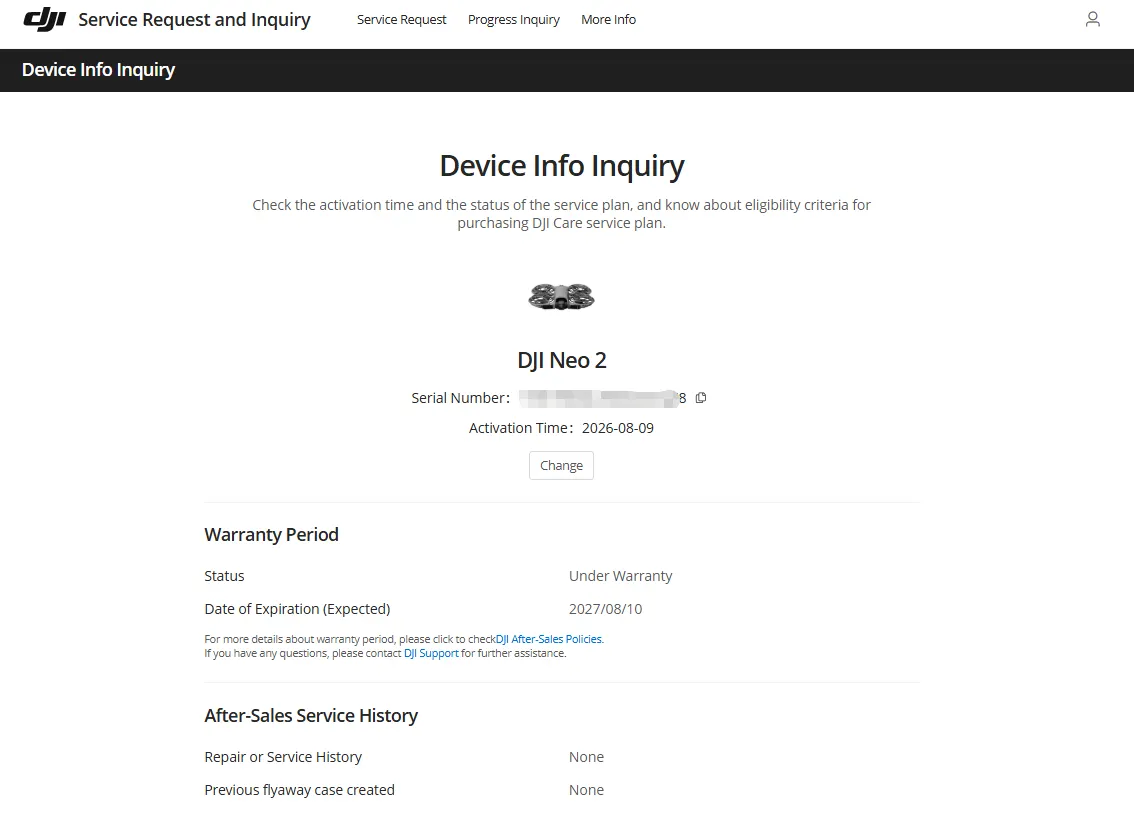
Check the product information shown
If the SN is genuine, the page will display your product's official record, including:
- Product model name and serial number
- Activation time
- Warranty status and expected expiration date
- After-sales service history
Seeing this page means the product is a genuine DJI product.
Example of a successful result
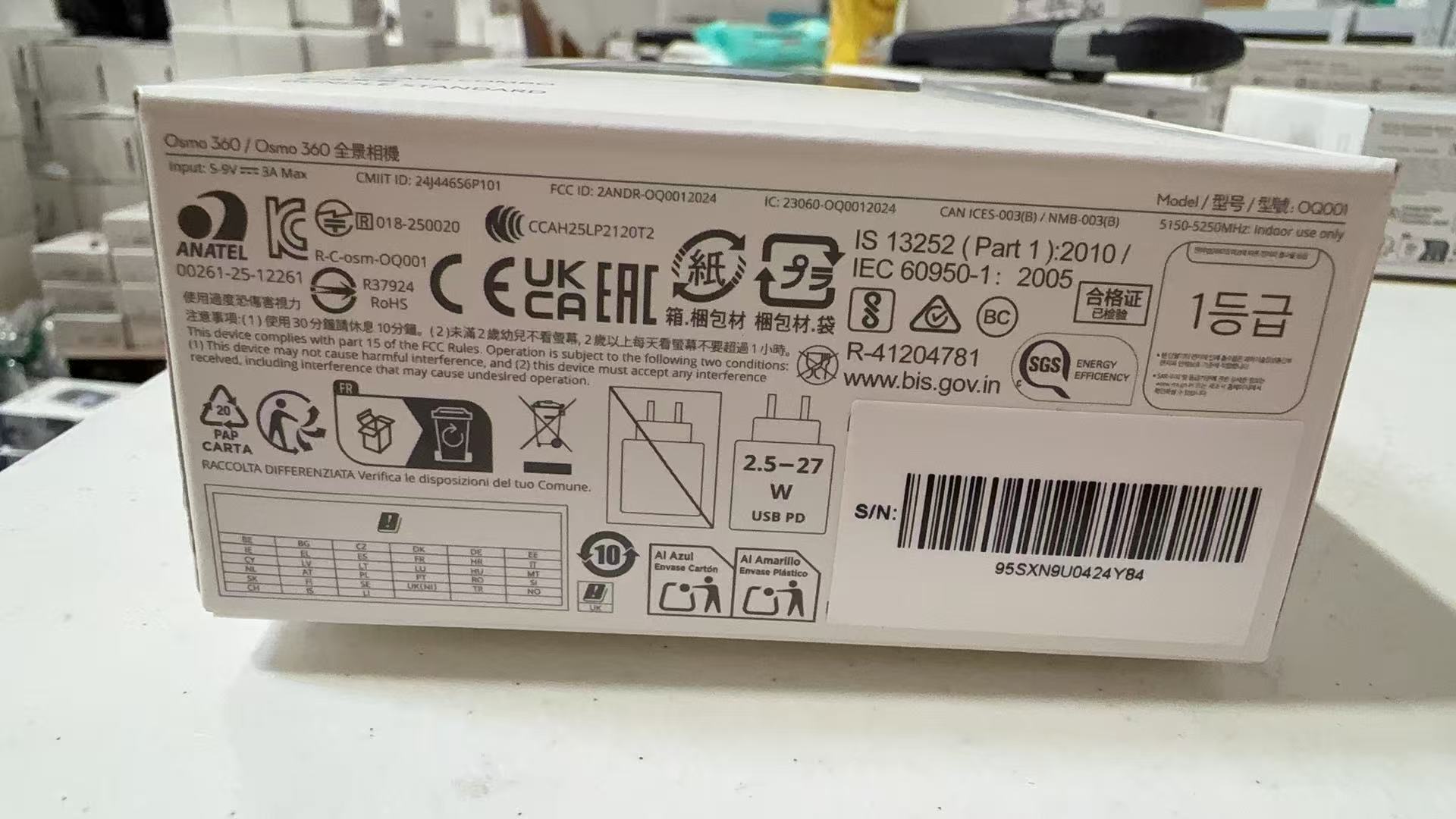
Where to find your SN
The serial number is printed on the label on the side of the original DJI box, next to the barcode. You can also find it on the product body label (for drones, often inside the battery compartment).
If the SN cannot be found on the DJI page, please contact us before use and we will help you check.
- ${Array(data.total || 0).fill().map((val, idx) => idx).map((val, idx) => ` `).join('')}

1"CMOS &
4K/240fps
4K/240fps
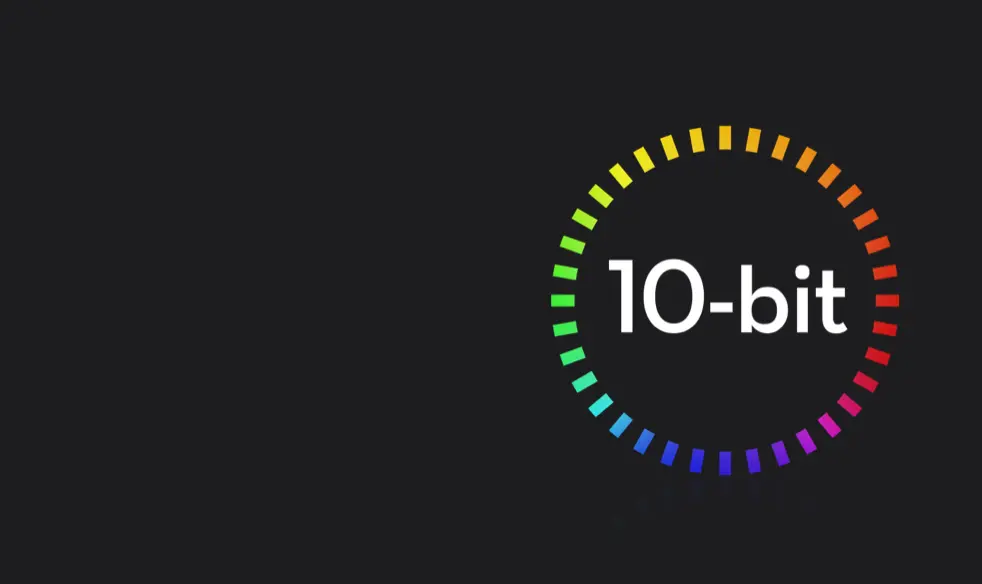
10-bit D-Log
14-Stop
Dynamic Range
Dynamic Range
2x Lossless Zoom
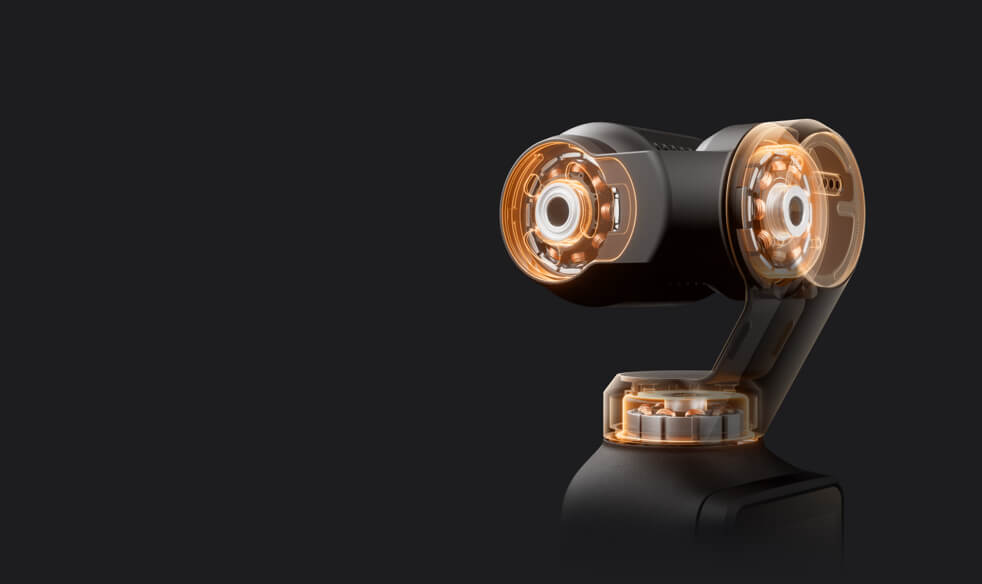
3-Axis Stabilization & Rotatable Touchscreen
107GB Built-In Storage & 800MB/s Transfer
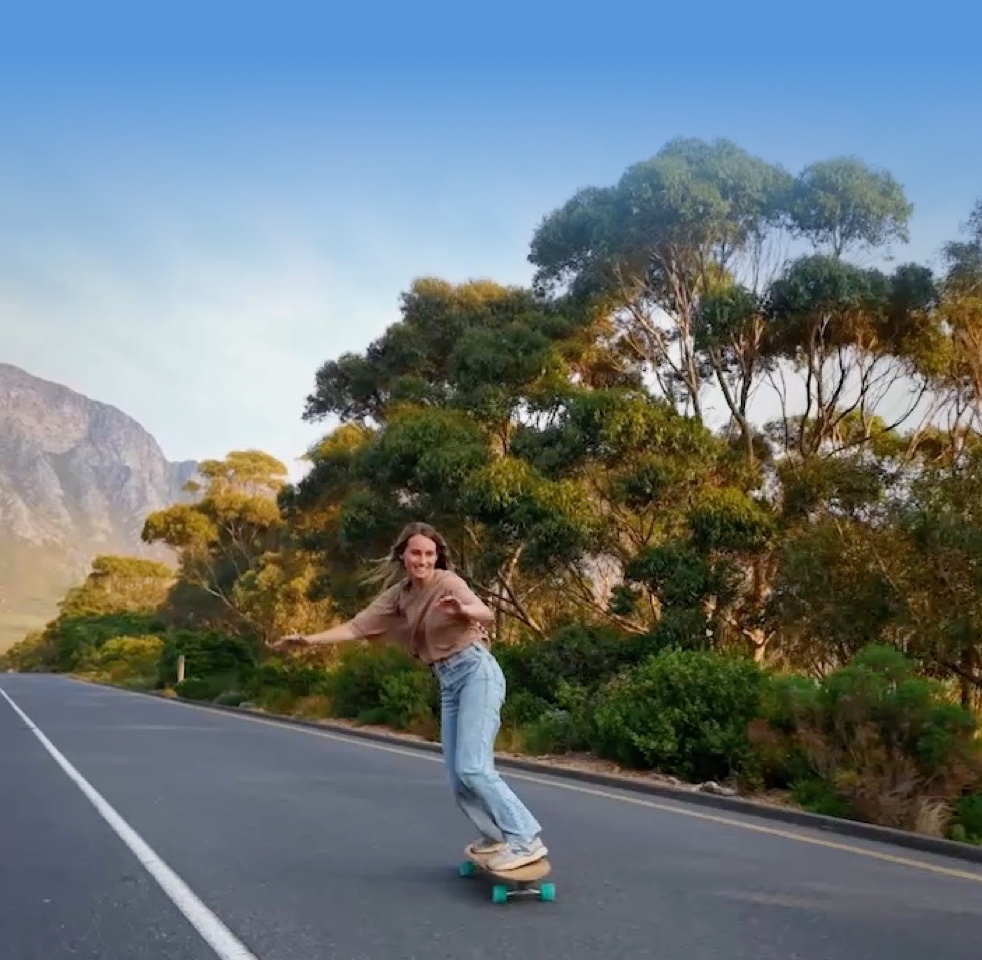
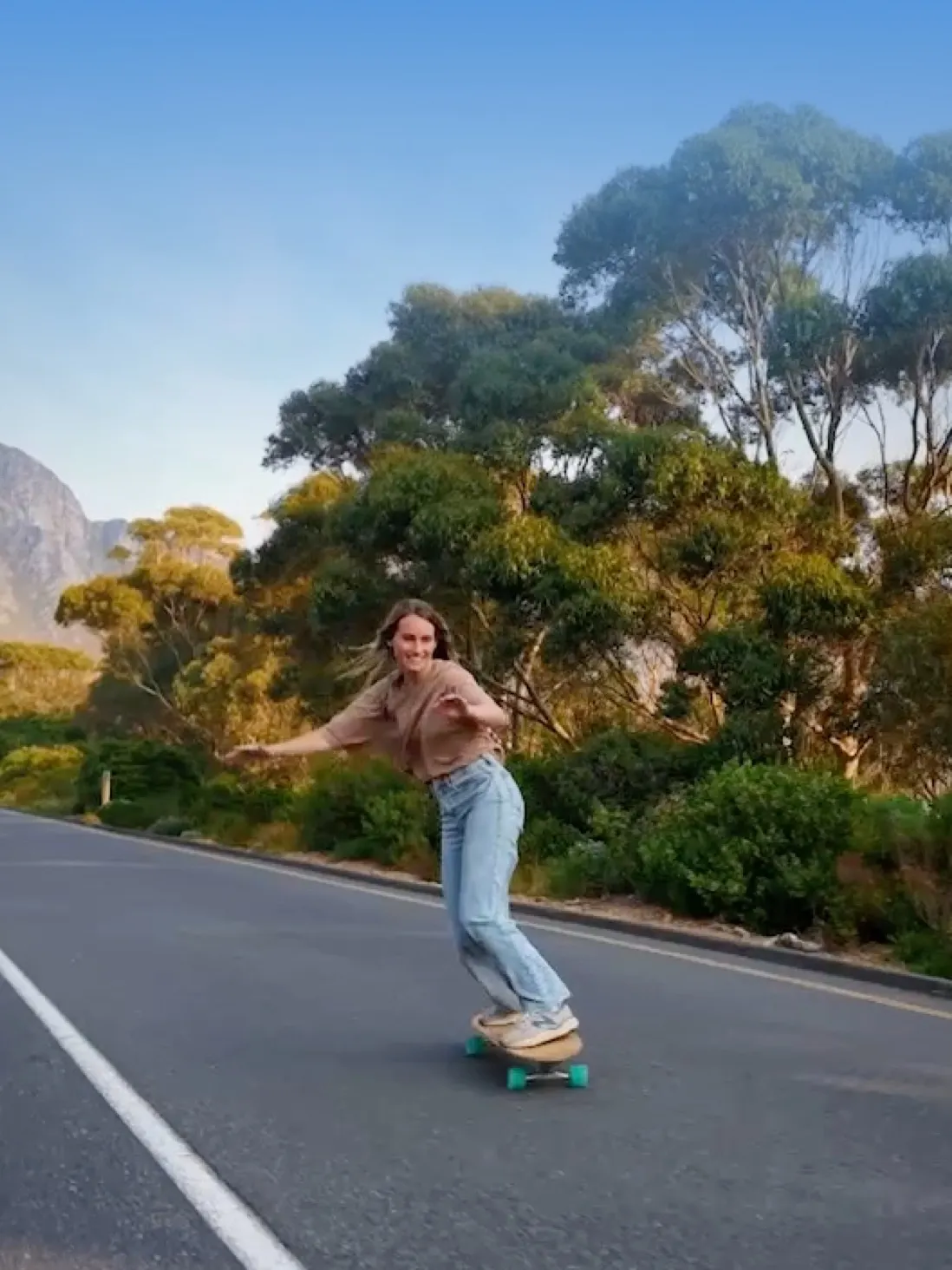
Ultra HD Slow Motion
Record 4K/240fps to capture every joyful moment with smooth, sharp clarity.


Pro-Grade Colors
14 stops of dynamic range and 10-bit D-Log deliver rich, true-to-life tones, even at dusk or in dim light.
Beach Nightscape Outdoor Travel Family Time Wild Wonders Urban Vlogging
FAQ
What are the functions of the two new physical buttons on Osmo Pocket 4?
Osmo Pocket 4 adds two new physical buttons under the touchscreen: a Zoom button and a Custom button. Additionally, an on-screen Custom button is displayed when shooting in Portrait mode.
Zoom button:
- Press to switch between 1× zoom and 2× zoom. If the current zoom is 1×, you can press to switch to 2×. If the current zoom is another value, you can press to switch back to 1×.
- Press twice to switch to 4× zoom.
Custom button:
- Press and hold to activate the custom preset features, including Switch Gimbal Mode, Photo/Video, Quick Capture, Switch C1/C2, C1 Quick Capture, Rotate Gimbal, Recenter Gimbal, Enable/Disable Gimbal Lock, Enable/Disable Fill Light, Follow/FPV, and so on.
What is the usage of the new Subject Management feature on Osmo Pocket 4?
On the Subject Management page, you can register and manage up to three subjects, which can be the same person if needed. Once registration is complete, you can enable the “Registered Subjects Only” gesture control option.
- When the “Registered Subject Priority” focus mode is on, Osmo Pocket 4 prioritizes focusing on the registered subject.
- When the “Spotlight Follow” tracking mode is on, Osmo Pocket 4 quickly tracks the registered subject.
How long can Osmo Pocket 4 record when using its built-in storage?
Osmo Pocket 4 has 107 GB of built-in storage. At the standard bitrate, it can record and save up to approximately 600 minutes of 1080p/24fps video or 220 minutes of 4K/60fps video.
What are the effective ranges for gesture control and subject tracking on Osmo Pocket 4?
Gesture control:
- 1× zoom: 0.5 m to 5 m
- 2× zoom: 1 m to 7 m
Subject tracking:
- 1× zoom: up to 10 m
What Timelapse modes are available on Osmo Pocket 4? What parameters can be customized?
There are three modes: Hyperlapse, Timelapse, and Motionlapse.
- In Hyperlapse mode, you can set the resolution, frame rate, and speed.
- In Timelapse mode, you can set the resolution, frame rate, interval, and duration.
- In Motionlapse mode, you can set the resolution, frame rate, interval, duration, and waypoints.
What is Osmo Pocket 4's D-Log color profile?
D-Log is designed to capture a wide dynamic range from the sensor, and colors are distributed evenly so the bright and dark parts of the video have greater fidelity and clarity. It is not a LUT but a lower-contrast video with a flat color profile, which is great for expanding post-processing options.
What are the main differences between Osmo Pocket 4 and Osmo Pocket 3?
Osmo Pocket 4 offers significant improvements in imaging quality, intelligent shooting, and operation experience. The main improvements include:
1. Superior imaging quality:
- Osmo Pocket 4 features a powerful 1-inch CMOS sensor for stunning 4K/240fps footage [1], clean night shots, and vivid landscape captures. With 14 stops of dynamic range [2] and 10-bit D-Log color profile [3], it delivers cinematic depth and rich detail in every frame.
- The in-camera Beautify feature [4] allows you to adjust skin smoothness, brightness, and tone. You can also choose from diverse film tones [4] to easily recreate classic styles and capture pro-level cinematic videos, or use the Fill Light and the Black Mist Filter [5] for more beautification.
2. Smarter capture experience:
- Osmo Pocket 4 supports ActiveTrack 7.0, enabling subject tracking at up to 4× zoom [6]. It can lock onto a variety of subjects, including people, cars, motorcycles, cats, dogs, and stationary objects, making it easy to capture every exciting moment effortlessly.
- The new Gesture Control feature [7] allows you to start/stop recording, take photos, and activate ActiveTrack through a single gesture, making solo content creation easier.
- Intelligent autofocus keeps your subject sharp. Enable “Subject Lock Tracking” [8] to automatically lock onto and track your subject; simply tap a detection box on the screen to switch focus subjects. Alternatively, use “Registered Subject Priority” [8] to prioritize focusing on a pre-registered subject.
3. More efficient operation:
- Two new physical buttons are added under the touchscreen for you to switch the zoom or customize frequently used features.
- 107 GB of built-in storage, Wi-Fi 6 wireless transfer, and wired transfer via USB-C (USB 3.1) cable at up to 800 MB/s ensure fast and convenient file management.
- The 5D joystick allows you to adjust the gimbal's rotational speed and zoom speed, making camera movement flexible.
- New accessories cover lighting, audio recording, operating time, and portability, supporting every creative setup.
2. In both Normal and D-Log color profiles, the maximum dynamic range reaches 14 stops. In Slow Motion mode, the actual dynamic range may be lower than 14 stops.
3. The 10-bit D-Log color profile is only supported in normal Video mode.
4. Film Tone and Beautify are only available in Video mode and cannot be used simultaneously. When Film Tone is enabled, the Beautify settings are unavailable. If Beautify is already enabled, switching to Film Tone mode will disable the beautify effect.
5. Sold separately or as part of a combo.
6. ActiveTrack is not supported in Panorama, Timelapse, Motionlapse, SpinShot modes, or when the gimbal is in FPV mode and the device is held horizontally. For optimal tracking performance, use in well-lit environments. ActiveTrack updates are available via the DJI Mimo app. Please contact DJI Support for details.
7. The effective range for Gesture Control is 0.5 to 5 m at 1× zoom and 1 to 7 m at 2× zoom. To control ActiveTrack or recording, use the specific gestures (Palm or V-Sign) and avoid covering your head with your hand. The effective distance may change with future firmware updates.
8. Subject Lock Tracking and Registered Subject Priority are supported in Video and Photo Pro modes, as well as in Hyperlapse mode. They are not available in Panorama, Timelapse, or Motionlapse modes.
What are the key ActiveTrack upgrades on Osmo Pocket 4?
The ActiveTrack upgrades on Osmo Pocket 4 mainly include the following:
1. All-Focal-Length Tracking
Track people, vehicles (e.g., cars, motorcycles), pets (e.g., cats, dogs), and objects of any shape at any set focal length.
2. Upgraded Spotlight Follow & Dynamic Framing
- Spotlight Follow: When recording starts, the gimbal camera automatically tracks the registered subject closest to the center of the frame.
- Dynamic Framing: Once enabled, use the joystick to position the tracking box based on the golden spiral or rule of thirds guidelines. Once the subject enters this area, press the joystick to start tracking and keep the subject locked in that exact composition.
3. Frame Tracking for Custom Compositions
Track the subject anywhere in the frame. When the subject enters the shot and a yellow box appears, press the joystick to start tracking. The gimbal camera locks the subject in that specific position, ideal for complex scene transitions and effortless cinematic one-takes.
How do I export photos and videos from Osmo Pocket 4?
- Connect to the DJI Mimo app and download the content to your smartphone.
- Insert the microSD card from Osmo Pocket 4 into a computer.
- Connect to a computer or an OTG-supported smartphone through a USB-C cable (USB 3.1).
Is the App Glamour Effects feature available both in photo and video modes?
The App Glamour Effects feature is available only in Video and Low-Light modes, not available in Photo or other modes.
Before recording, enable App Glamour Effects on Osmo Pocket 4. After recording, export the footage using the DJI Mimo app to apply glamour effects, where you can also adjust various glamour effects parameters before exporting.
The App Glamour Effects feature supports adjusting up to 4K/60fps videos. However, depending on their processing performance, some smartphone models only support exporting 1080p/30fps videos.
Is the in-camera Beautify feature available both in photo and video modes?
The in-camera Beautify feature is only available in Video mode, not available in Photo or other modes. Once enabled, you can adjust the intensity of skin smoothness, brightness, and tone according to your preference.
The Film Tone and Beautify features cannot be used simultaneously. When Film Tone is enabled, the Beautify settings are unavailable. If Beautify is already enabled, switching to Film Tone mode will disable the beautify effect.
Is Osmo Pocket 4's 1-inch sensor the same as Osmo Pocket 3?
No. Osmo Pocket 4 features an all-new 1-inch stacked CMOS sensor that delivers improved imaging quality, supports up to 4K/240fps slow-motion recording, and offers enhanced overall performance.
What is Osmo FrameTap?
Osmo FrameTap is a remote controller with a touchscreen for live view. You can connect it to Osmo Pocket 4 to control the gimbal camera remotely and view your shots in real time.
How do I connect Osmo FrameTap to Osmo Pocket 4?
- Turn on Osmo FrameTap, connect it to the DJI Mimo app on your smartphone, and update the firmware to enable connection with Osmo Pocket 4.
- Once the update is complete, search for nearby devices on Osmo FrameTap.
- Follow the on-screen prompts to complete the connection.
What accessories does Osmo Pocket 4 support?
Osmo Pocket 4 supports the following accessories: Handle With 1/4″ Thread, Battery Handle, DJI Mic 3 Transmitter, Wide-Angle Lens, Mini Tripod, Black Mist Filter, Expansion Adapter, Magnetic ND Filter Set, Carrying Bag, Protective Cover, USB-C to USB-C PD Cable (USB 3.1), Fill Light, and Gimbal Clamp, among others.
Some accessories are sold separately or as part of a combo.What is the power consumption of the Osmo Pocket 4 Fill Light? How does installing the Fill Light affect Osmo Pocket 4's operating time?
- Medium brightness: The Fill Light consumes 0.35 W of power. The operating time for 1080p/24fps video is up to 210 minutes* (reduced by approximately 30 minutes).
- High brightness: The Fill Light consumes 0.55 W of power. The operating time for 1080p/24fps video is up to 186 minutes* (reduced by approximately 54 minutes).
- Without the Fill Light: The operating time for 1080p/24fps video is up to 240 minutes*.
Which channels are involved in Osmo Pocket 4's OsmoAudio four-channel output? Which channels are the internal dual channels?
Osmo Pocket 4 supports connecting two transmitters for audio recording. When at least one DJI Mic transmitter is connected, recorded video files automatically contain two audio tracks with a total of four channels:
Audio Track 1 (Transmitter Audio):
- With 1 DJI Mic transmitter: The Left and Right channels record the same audio from the transmitter.
- With 2 DJI Mic transmitters: The Left and Right channels record audio from the two transmitters separately (e.g., Left for DJI Mic Transmitter 1, Right for DJI Mic Transmitter 2).
Audio Track 2 (Built-in Stereo):
- This track records the Left and Right channels from the camera’s built-in microphone array. It is synchronized within the video file and is typically used for ambient sound.
When no DJI Mic transmitter is connected, the video plays the camera's built-in audio. When a DJI Mic transmitter is connected, playback defaults to the audio recorded by the transmitter.
Can Osmo Pocket 4 be connected to Bluetooth or Wi-Fi?
Yes.
Is Osmo Pocket 4 waterproof?
No.
Questions you may ask...
If you have any product-related questions, click here or send an email to the address below to get in touch with us. We'll be glad to offer you assistance.
You may also like